
How to Block Spam and Phishing Emails with Mailbux Filters (Step-by-Step Guide)
Spam and phishing emails are more than an annoyance — they are a genuine threat to your business. Every day, attackers send millions of fake emails impersonating companies like Meta, PayPal, banks, and shipping carriers. One careless click on a phishing link can expose your passwords, financial data, or customer information. And even if you never click, wading through dozens of spam messages every morning wastes time you could spend on actual work.
The good news: with Mailbux — Free unlimited business email hosting for your business. Sign up now, you get a built-in email filter system that lets you automatically block, move, or flag unwanted emails before they clutter your inbox. This guide walks you through exactly how to set up filters to stop spam and phishing emails in their tracks.
Why Email Filters Matter
Phishing attacks have become disturbingly sophisticated. Here are some of the most common scam emails businesses receive every day:
- Fake Meta/Facebook emails — "Your Facebook page will be deactivated" or "Action required on your account." These emails mimic Meta branding perfectly and trick you into entering your login credentials on a fake site.
- Fake PayPal emails — "Verify your payment method" or "Your account has been limited." They include realistic PayPal logos and direct you to a cloned login page.
- Fake bank emails — "Unusual activity detected on your account" or "Your card has been suspended." These target both personal and business bank accounts.
- Fake shipping notifications — "Your package is waiting" or "Delivery failed — confirm your address." Especially common during holidays.
- Cryptocurrency and investment scams — "Bitcoin profit opportunity" or "Guaranteed returns on your investment."
- Unwanted newsletters and marketing — promotional emails from services you never signed up for, clogging your inbox daily.
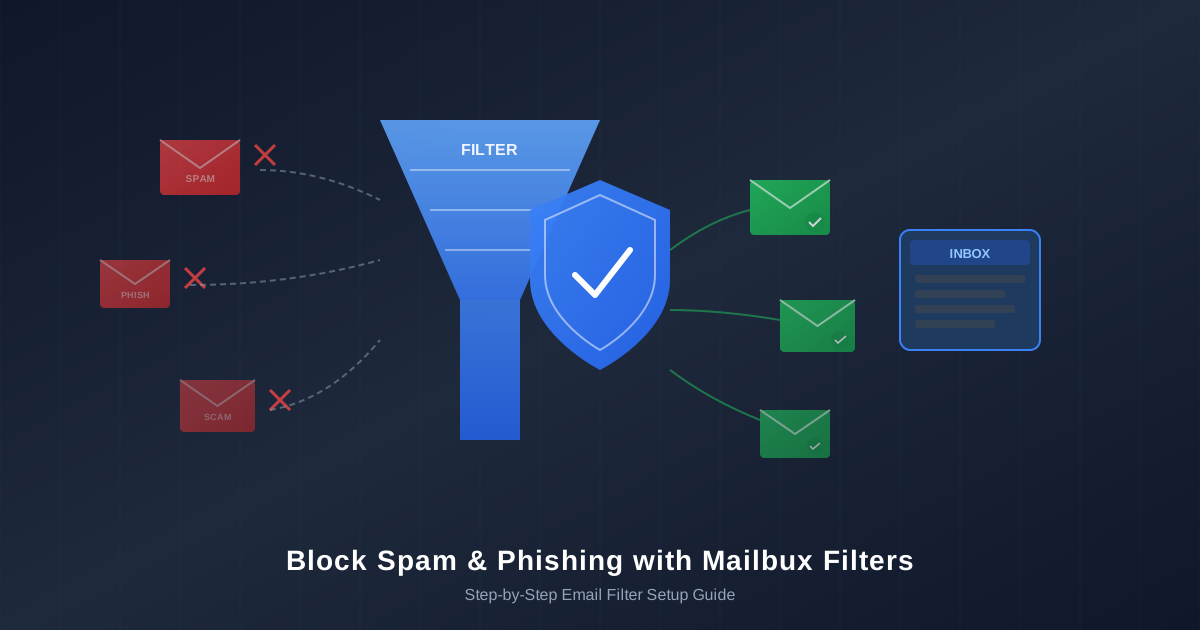
Email filters act as a gatekeeper. Instead of manually deleting these messages one by one, you define rules once and Mailbux enforces them automatically — 24 hours a day, on every incoming email. A well-configured set of filters can eliminate 90% or more of unwanted email from ever reaching your inbox.
How Mailbux Filters Work
Mailbux has a built-in filter system accessible at https://mail.mailbux.com/mail/filters. From this page, you can create rules that automatically process incoming emails based on conditions you define.
Each filter has three components:
- Filter Name — a label so you can identify the rule later (e.g., "Block Meta Phishing")
- Filter Condition — what the filter looks for: text in the sender domain, the sender address, or content in the email body
- Action — what happens when an email matches: block it, move it to spam, route it to a folder, or flag it for review
Filters run automatically on every incoming email. You set them up once and they work in the background — no manual intervention needed.
Filter Types Available in Mailbux
Text Filter
The text filter is the most flexible option. It scans the sender domain, sender address, and email body for a specific text string. If the text appears anywhere in the email, the filter triggers. This is ideal for catching phishing emails that use specific keywords like "Meta," "verify your account," or "action required."
Sender Filter
The sender filter matches against the sender's email address. You can block a specific address (e.g., scammer@fakemeta.com) or an entire domain (e.g., @spammydomain.com). This is the email blacklist filter approach — once you add a sender or domain, every future email from that source is handled automatically.
Domain Filter
The subject filter matches keywords that appear only in the email sender domain. This is more targeted than the text filter — it will not trigger on body content. Use it when you want to catch emails with specific subject patterns like "Your account will be suspended" without accidentally matching legitimate emails that happen to contain similar words in the body.
Actions Available
| Action | What It Does | Best For |
|---|---|---|
| Block (Discard) | Silently deletes the email — it never reaches any folder | Obvious spam and phishing you are certain about |
| Delete | Routes the email to your Trash for later review | Suspected spam where you want a safety net |
| Move to Folder | Sends the email to a specific folder of your choice | Newsletters, receipts, notifications you want organized |
| Allow (Whitelist) | Marks the email with a flag for manual review | Emails that need human judgment before action |
Real-World Examples: Setting Up Filters Step by Step
Here are five practical filter setups that cover the most common spam and phishing scenarios. Each example walks you through the exact steps.
Example 1: Block Fake Meta/Facebook Phishing Emails
Fake Meta and Facebook emails are among the most common phishing attacks targeting businesses. Here is how to block them:
- Go to https://mail.mailbux.com/mail/filters
- Click "Create New Filter"
- Set Filter Name to:
Block Meta Phishing - Set Filter Type to: Text
- In the Text to Match field, enter:
action required on your account - Set Action to: Block (Discard)
- Click Create Filter
You can create additional filters for other common Meta phishing phrases. Consider adding separate filters for:
your Facebook page will be deactivatedyour ad account has been restrictedconfirm your identity to keep your page
Tip: Use specific phrases rather than just the word "Meta" to avoid blocking legitimate emails from Meta or Facebook. The phrase "action required on your account" is almost always a phishing indicator.
Example 2: Block Emails from a Specific Domain
If you notice a pattern of spam coming from a particular domain, you can block everything from that domain at once:
- Go to https://mail.mailbux.com/mail/filters
- Click "Create New Filter"
- Set Filter Name to:
Block Spammy Domain - Set Filter Type to: Sender
- In the Text to Match field, enter:
@spammydomain.com - Set Action to: Block (Discard)
- Click Create Filter
This email blacklist filter approach is particularly effective when a single domain sends you repeated spam. Every email from that domain — regardless of the specific address — will be silently discarded.
Example 3: Filter PayPal Phishing to Spam Folder
PayPal phishing is tricky because you might also receive legitimate PayPal emails. Using "Delete" instead of "Block" gives you a safety net — you can review the trash periodically to check for real PayPal messages.
- Go to https://mail.mailbux.com/mail/filters
- Click "Create New Filter"
- Set Filter Name to:
PayPal Phishing Check - Set Filter Type to: Text
- In the Text to Match field, enter:
verify your payment - Set Action to: Delete
- Click Create Filter
This way, if a legitimate PayPal email happens to contain "verify your payment," you will find it in your trash rather than losing it entirely.
Example 4: Block Cryptocurrency and Investment Scams
Crypto scam emails are relentless. They promise guaranteed returns, free Bitcoin, or exclusive investment opportunities. Block them outright:
- Go to https://mail.mailbux.com/mail/filters
- Click "Create New Filter"
- Set Filter Name to:
Block Crypto Scams - Set Filter Type to: Text
- In the Text to Match field, enter:
bitcoin profit - Set Action to: Block (Discard)
- Click Create Filter
Create additional filters for other common scam phrases: crypto investment, guaranteed returns, double your money, and exclusive trading opportunity.
Example 5: Route Newsletters to a Dedicated Folder
Not all unwanted email is malicious. Newsletters and marketing emails can be useful but distracting when they mix in with important business messages. Route them to a dedicated folder instead:
- Go to https://mail.mailbux.com/mail/filters
- Click "Create New Filter"
- Set Filter Name to:
Route Newsletters - Set Filter Type to: Text
- In the Text to Match field, enter:
unsubscribe - Set Action to: Move to Folder and select or create a folder called Newsletters
- Click Create Filter
Most legitimate newsletters and marketing emails include the word "unsubscribe" in their body (it is legally required in many countries). This filter catches the vast majority of newsletter-type emails and keeps your inbox focused on real conversations.
Best Practices for Email Filter Setup
Follow these guidelines to get the most out of your Mailbux spam filter configuration:
- Use "Delete" when unsure. If there is any chance a filter might catch a legitimate email, choose "Delete" instead of "Block (Discard)." You can always review your trash, but a discarded email is gone permanently.
- Be specific with text matches. A filter matching just "account" will catch far too many legitimate emails. Use specific phrases like "your account has been suspended" or "verify your account immediately" instead.
- Review your trash weekly. Even with well-configured filters, check your trash periodically. Legitimate emails occasionally get caught — especially if a real company uses urgent language similar to phishing templates.
- Report phishing to the real company. When you receive a phishing email impersonating Meta, PayPal, or your bank, forward it to the real company's abuse address (e.g., phish@paypal.com or phish@fb.com). This helps them take down the scam operation.
- Watch for common phishing keywords. Here are phrases that almost always indicate a phishing email:
- "Verify your account immediately"
- "Your account will be suspended"
- "Unusual activity detected"
- "Click here immediately"
- "Your package is waiting"
- "Confirm your identity or lose access"
- "You have won" or "You have been selected"
- Create filters proactively. Do not wait until you are overwhelmed. Set up filters for the most common phishing patterns now, before they start hitting your inbox.
How to Whitelist Important Senders
Filters work both ways. Just as you can block spam emails, you can create rules that protect important emails from being accidentally caught by other filters.
To whitelist a sender:
- Go to https://mail.mailbux.com/mail/filters
- Click "Create New Filter"
- Set Filter Name to:
Whitelist — PayPal(or whatever sender you want to protect) - Set Filter Type to: Sender
- In the Text to Match field, enter the legitimate sender address:
service@paypal.com - Set Action to: Move to Folder and select Inbox
- Click Create Filter
This ensures that emails from the real PayPal address always land in your inbox, even if you have a broader text filter that catches PayPal-related phishing phrases. Whitelist filters take priority and override other matching rules.
Consider creating whitelist filters for:
- Your bank's official email address
- Key clients and business partners
- Payment processors (PayPal, Stripe, your merchant bank)
- Domain registrar and hosting provider notifications
- Government and tax authority email addresses
Managing Your Existing Filters
All your active filters are listed at https://mail.mailbux.com/mail/filters. From this page you can:
- Edit a filter — change the text match, action, or filter type. Useful when scammers change their wording and you need to update your rules.
- Disable a filter — temporarily turn off a filter without deleting it. Helpful for troubleshooting if you suspect a filter is catching legitimate emails.
- Delete a filter — permanently remove a filter you no longer need.
It is good practice to review your filter list every few months. Remove outdated filters, update text matches for new phishing patterns, and add new rules as you notice emerging spam trends.
Start Protecting Your Inbox Today
Email filters are one of the simplest and most effective ways to block spam emails and protect your business from phishing attacks. With Mailbux, setting up filters takes less than a minute per rule — and once configured, they work automatically on every incoming email.
Here is a quick-start checklist to get protected right now:
- Log into your Mailbux — Free unlimited business email hosting for your business. Sign up now
- Go to Filters
- Create a text filter for "action required on your account" (Block) to stop Meta/Facebook phishing
- Create a text filter for "verify your payment" (Delete) to catch PayPal scams
- Create a text filter for "unsubscribe" (Move to Folder: Newsletters) to organize marketing emails
- Whitelist your most important senders so they always reach your inbox
Six filters, five minutes, and your inbox goes from a chaotic mess to a clean, organized workspace. Your future self will thank you.