
White-Label Email Hosting: How to Rebrand Mailbux for Your Customers
What is White-Label Email Hosting?
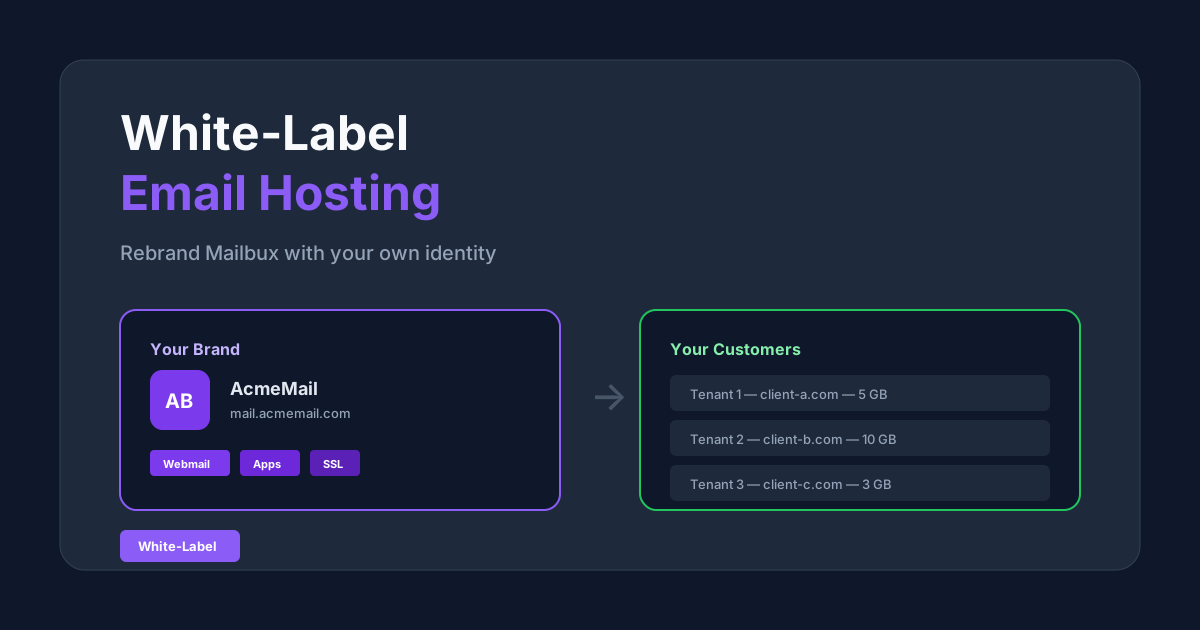
White-label email hosting lets you offer Mailbux email services under your own brand name. Your customers see your logo, your colors, your domain — never knowing Mailbux powers it behind the scenes.
What Can You Rebrand?
Mailbux offers three reseller add-on tiers with increasing branding capabilities:
| Feature | Webmail | Apps | Complete |
|---|---|---|---|
| Custom logo, colors, favicon | ✓ | ✓ | ✓ |
| Custom login title & subtitle | ✓ | ✓ | ✓ |
| Custom “Sent by” footer | ✓ | ✓ | ✓ |
| Sub-tenant creation & management | ✓ | ✓ | ✓ |
| Branded iOS & Android apps | — | ✓ | ✓ |
| Desktop apps (Win/Mac/Linux) | — | — | ✓ |
| Custom domain & free SSL | — | — | ✓ |
| Custom SMTP relay | — | — | ✓ |
| Firebase push notifications | — | ✓ | ✓ |
View available tiers and pricing at Settings → Subscription → Add-ons.
Step-by-Step: Setting Up Your Brand
Step 1: Purchase a Reseller Add-on
Go to Settings → Subscription → Add-ons and choose your tier. You also need a paid plan (not Free) for storage quota to allocate to sub-tenants.
Step 2: Create Your Brand
- Navigate to Reseller → Rebrand
- Click Create New Brand — a 3-step wizard opens
- Step 1 – Identity: Enter your brand name (lowercase, used as folder name), display title, webmail hostname, and optional mail server hostname
- Step 2 – Appearance: Pick a color theme, set primary color, support email, login title & subtitle
- Step 3 – Review: Check all details, then click Create Brand
After creation, the Manage Brand modal opens automatically for further configuration.
Step 3: Upload Brand Assets
In the Manage Brand modal, upload your visual identity:
Logo (Main) PNG, SVG or JPG |
Logo Short Square icon |
Favicon .ico or .png |
Notification PNG only |
Desktop Icon PNG only |
Click the Upload button below each asset slot. Changes are instant — refresh your webmail to see them.
Step 4: Set Up Custom Hostnames (CNAME Records)
This is the most important step for a fully branded experience. You need two DNS records:
1. Webmail Hostname — points to mail.mailbux.com
This is the URL your customers visit to access webmail in their browser (e.g., webmail.yourdomain.com/inbox). It serves the web interface.
| Type | CNAME |
| Name | webmail |
| Target | mail.mailbux.com |
2. Mail Server Hostname — points to my.mailbux.com
This is what email apps (Outlook, Thunderbird, iOS Mail, Android) connect to for IMAP/SMTP. It is NOT the webmail URL — it handles email protocol connections only.
| Type | CNAME |
| Name | |
| Target | my.mailbux.com |
⚠ Common Mistake — Don't Mix Up the Two!
| ❌ WRONG | ||
| Webmail hostname | CNAME → | my.mailbux.com |
| Mail server hostname | CNAME → | mail.mailbux.com |
If you point your webmail hostname to my.mailbux.com, visitors will see a 404 error because my.mailbux.com is the mail protocol server — it does not serve web pages.
| ✅ CORRECT | ||
| Webmail hostname | CNAME → | mail.mailbux.com |
| Mail server hostname | CNAME → | my.mailbux.com |
Remember: mail.mailbux.com = web server (serves /inbox). my.mailbux.com = mail server (IMAP/SMTP ports).
Important: DNS changes can take up to 24 hours to propagate. Use the Verify DNS button in Manage Brand to check if your records are correctly configured. Once verified, click Install SSL to get a free Let’s Encrypt certificate.
Where to Add DNS Records
This depends on your domain registrar. Common providers:
- Cloudflare — DNS → Add Record → CNAME → enter name and target
- GoDaddy — My Products → DNS → Add → CNAME → enter host and points to
- Namecheap — Advanced DNS → Add New Record → CNAME → host and value
- Google Domains — DNS → Custom Records → CNAME
If you use Cloudflare, set the proxy status to DNS only (grey cloud) for the mail server hostname.
Step 5: Configure SMTP Relay (Optional)
If you want outgoing mail to route through your own SMTP server, configure it in Manage Brand → Custom SMTP Relay:
smtp.yourdomain.com587user@yourdomain.comTLS (recommended)Step 6: Set Up Push Notifications (Optional)
To enable push notifications in your branded apps:
- Create a Firebase project
- Download the Service Account JSON from Firebase Console → Project Settings → Service Accounts
- Download google-services.json (Android) and GoogleService-Info.plist (iOS) from Firebase Console → Project Settings → General
- Upload all three files in Manage Brand → Firebase Push Notifications
Optionally, configure VAPID Keys in the VAPID Keys & Secrets section for web push notifications.
Step 7: Create Sub-Tenants
With your brand set up, create email hosting accounts for your customers at Reseller → Tenants:
- Click Create Tenant — credentials are auto-generated
- Set the storage quota (allocated from your plan)
- Share the credentials with your customer
- They log in at your branded webmail URL
Managing Tenant Accounts
Click Manage on any tenant to:
- Add/remove domains — your customer can host multiple domains
- Create/edit/delete email accounts — set password, display name, and per-account quota
- Suspend/unsuspend accounts — temporarily disable without deleting
- Adjust quota — increase or decrease storage allocation
Step 8: Generate Branded Apps (Apps/Complete Tiers)
Click Generate Apps on your brand card to build branded versions of:
- iOS app (via App Store)
- Android app (via Google Play or direct APK)
- Windows, macOS, and Linux desktop apps (Complete tier only)
Apps include your logo, colors, and hostname — and auto-update when you push changes.
How “Sent by” Branding Works
By default, free plan emails include a “Sent by Mailbux” footer. With a reseller add-on:
- Your sub-tenants’ emails will NOT show “Sent by Mailbux”
- You can optionally add your own “Sent by YourBrand” footer via brand settings
- You can allow or prevent your tenants from toggling this setting themselves
Troubleshooting
Brand logo not showing?
Logos are served from mail.mailbux.com/inbox/brands/yourbrand/. If you just uploaded, wait a few seconds and refresh. Clear browser cache if needed.
SSL installation fails?
Make sure your CNAME record is propagated and pointing correctly. Use the Verify DNS button first. Let’s Encrypt requires the domain to resolve to our server.
Webmail shows “not secure”?
Click Install SSL on the brand card. It takes a few seconds to issue the certificate.
Can I use the free plan for reselling?
No. You need a paid main plan (for storage) plus a reseller add-on (for capabilities). The free plan cannot create sub-tenants.
How many tenants can I create?
There is no hard cap on tenant count — quota is the only limit. Each tenant draws from your plan’s storage allocation.